 Moogoose
No small keys
Speaking replaces most of the typing. Moogoose has large buttons, so there are fewer small keys to hit.
Older adults
Moogoose is an easy AI voice keyboard for Android for older adults and seniors, and for anyone helping an elderly parent with their phone. Small keys, small text and less steady hands can make messages on a phone slow and frustrating. Moogoose lets you say what you want to write in your own words. It types the message for you and then tells you, in a few spoken words, what it says. Nothing is sent until you choose to send it.
Get Moogoose on Google PlayThe Get Started video shows each step of setting up the keyboard and writing a message, so a family member or friend can follow it with you.
Watch full screenThe difference
Setup takes about two minutes. The Get Started video shows each step, and a family member or friend can help the first time if you like.
AI writing assistance
You do not need to learn special commands. Talk to Moogoose as you would to a person, such as “tell my grandson happy birthday and that I’ll ring him on Sunday”, and it writes the message. You can ask it to change anything.
Everyday example
Your grandson has a birthday today.
“Tell him happy birthday, I hope he has a lovely day, and I’ll ring him on Sunday.”
A cheerful birthday message appears, ready to go. Moogoose tells you what it says, and you press Send when you are happy.
Using the keyboard
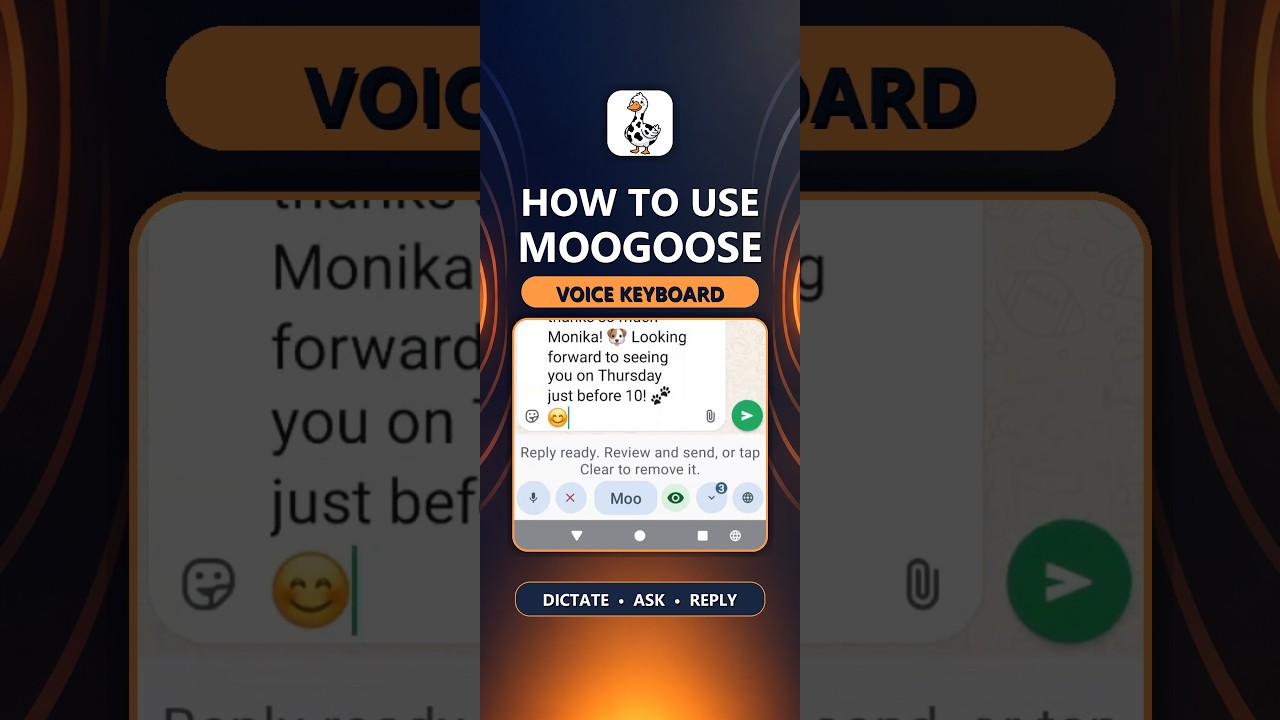
Open the message in the app you use, such as WhatsApp or text messages, and switch to the Moogoose keyboard.
Tap the Moogoose button and say what you want to write in your own words.
You hear a short summary. Check the message, ask for a change if needed, and press Send yourself.
What to expect
Speaking replaces most of the typing. Moogoose has large buttons, so there are fewer small keys to hit.
Nothing is sent until you press Send. You can change the message, ask for a new one, or delete it.
Moogoose tells you what it wrote in a short spoken summary, so you do not have to read small text. TalkBack, Android’s screen reader, can read you the full message.
Good to know: Check names, dates and amounts before you press Send.
Your questions
Yes. You speak in your own words and Moogoose writes the message. There are no commands to learn.
No. If you can open a message and tap a button, you can use it. A family member or friend can help with setup the first time.
No. Nothing is sent until you press Send yourself.
Yes. It works in WhatsApp, in your text messages and in email, so you can use it for all your family messages.
Yes. If your mum or dad finds small keys hard, Moogoose lets them speak their messages. You can set it up together in a few minutes.
Yes. Say what you want to tell them, such as news or birthday wishes, and Moogoose writes a warm message.
Yes. Moogoose has large, clear buttons, so there are fewer small keys to hit.
Just ask it to change the message, or delete it and try again.
Yes. With Conversation Reading on, ask Moogoose about a message you have been sent and it tells you the main points. TalkBack, the screen reader built into Android, can read every word to you.
Yes. Android’s display settings can make text larger across your phone, and Moogoose’s summaries mean you read less.
Yes. Moogoose sits alongside your usual keyboard, and you can switch between them with one tap.
Yes. Moogoose supports over 70 languages. Say what you want in your language, and ask for the message in theirs.
No. Moogoose is for Android phones only.
You can see availability and the current in-app purchase prices on Moogoose’s Google Play page.
Yes. Your messages are kept on your own phone, and nothing is sent until you press Send. When you ask Moogoose to write, what it needs goes through its protected server to Google Gemini.
Keep exploring
Get Moogoose for Android. Pay as you go. No subscription — you only pay for what you use.
Get it on Google Play